Share a collection with a friend
Give a friend live access to one of your collections through iCloud sharing.
You can share a whole collection — say, your LEGO sets — with a friend or family member. They see your items in their own copy of Klepto, and updates arrive as you make them. Sharing is a Klepto Pro feature, and it rides on iCloud sync, so turn that on first.
Send an invite
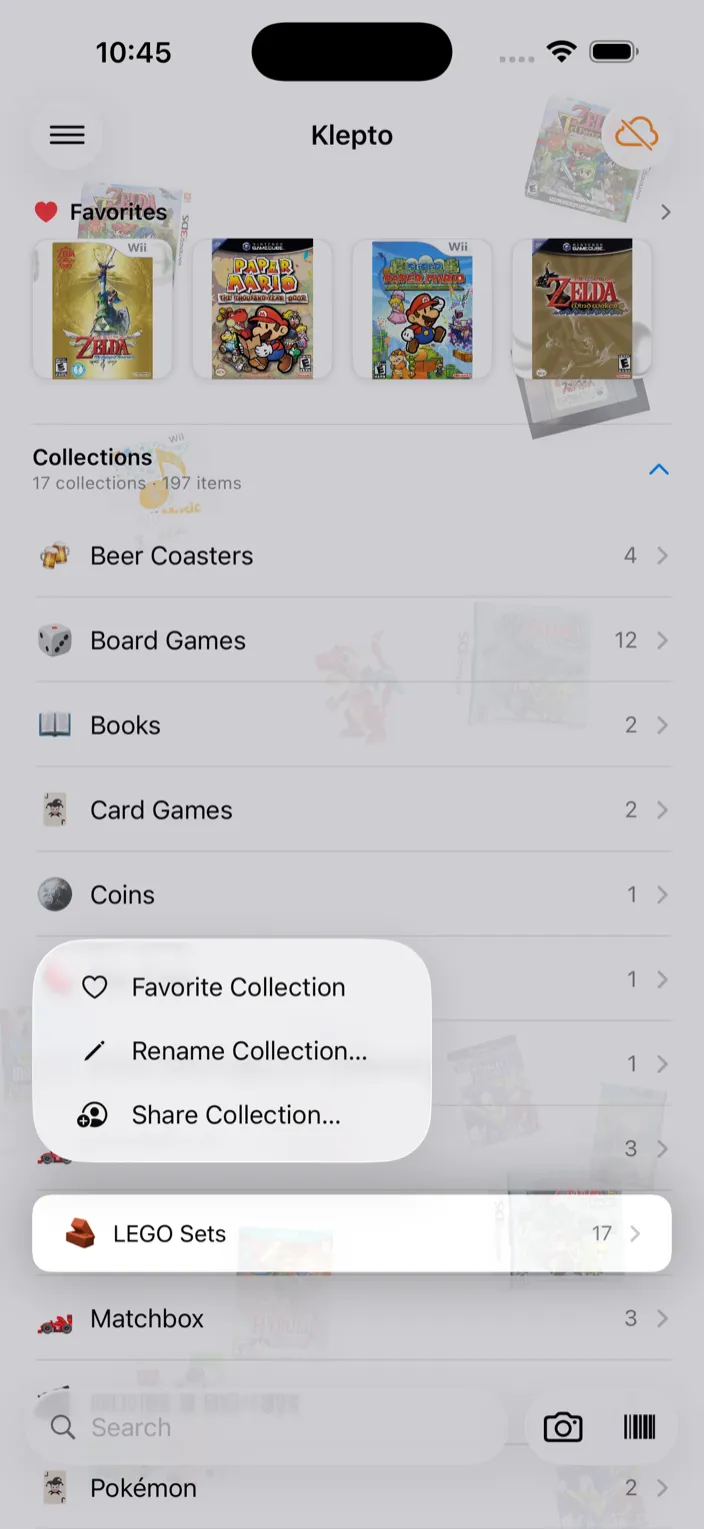
- Long-press the collection on the home screen and choose Share Collection…. Or open the collection and tap the share button at the top.
- Choose the access: View only or Can edit. With Can edit, your friend gets an Add Item button and can change items too.
- Send the link — Send in Messages, Email, or Copy link to paste anywhere.
Accept an invite
- Open the link on a device that has Klepto installed and is signed in to iCloud.
- iOS asks you to accept the shared collection.
- It appears on your home screen alongside your own collections, with Shared by and the owner’s name under it.
Tips
- Once a collection is shared, it carries a Shared with banner naming the people on it. Tap the banner to add people, change their access, or Stop Sharing. The collection stays yours; they lose access.
- Your locations stay private. Shared items don’t show where you keep them.
- On a shared item, the recipient can’t favorite it, send a card of it, or see its market value — those are the owner’s.
- Both sides need iCloud. A friend without an Apple account can’t open the link.