Export your collection
A printable inventory of what you own, or a spreadsheet of it — filter by category, tag, or date, then share.
Klepto exports your collection as a PDF you can save, print, or share, or as a CSV you can open in Numbers, Excel, or Google Sheets. Useful for insurance records, letting family know what’s yours, or just seeing everything in one place. Export is a Klepto Pro feature.
Steps
- Settings → Export Collection. The Summary at the top shows how many items you have and how many the current filters will export.
- Pick a format: PDF for a catalogue with photos, CSV for a spreadsheet.
- Filter, if you like: Favorites only, a subset of Categories, one or more Tags, or a date-added range. Wishlisted items are never included.
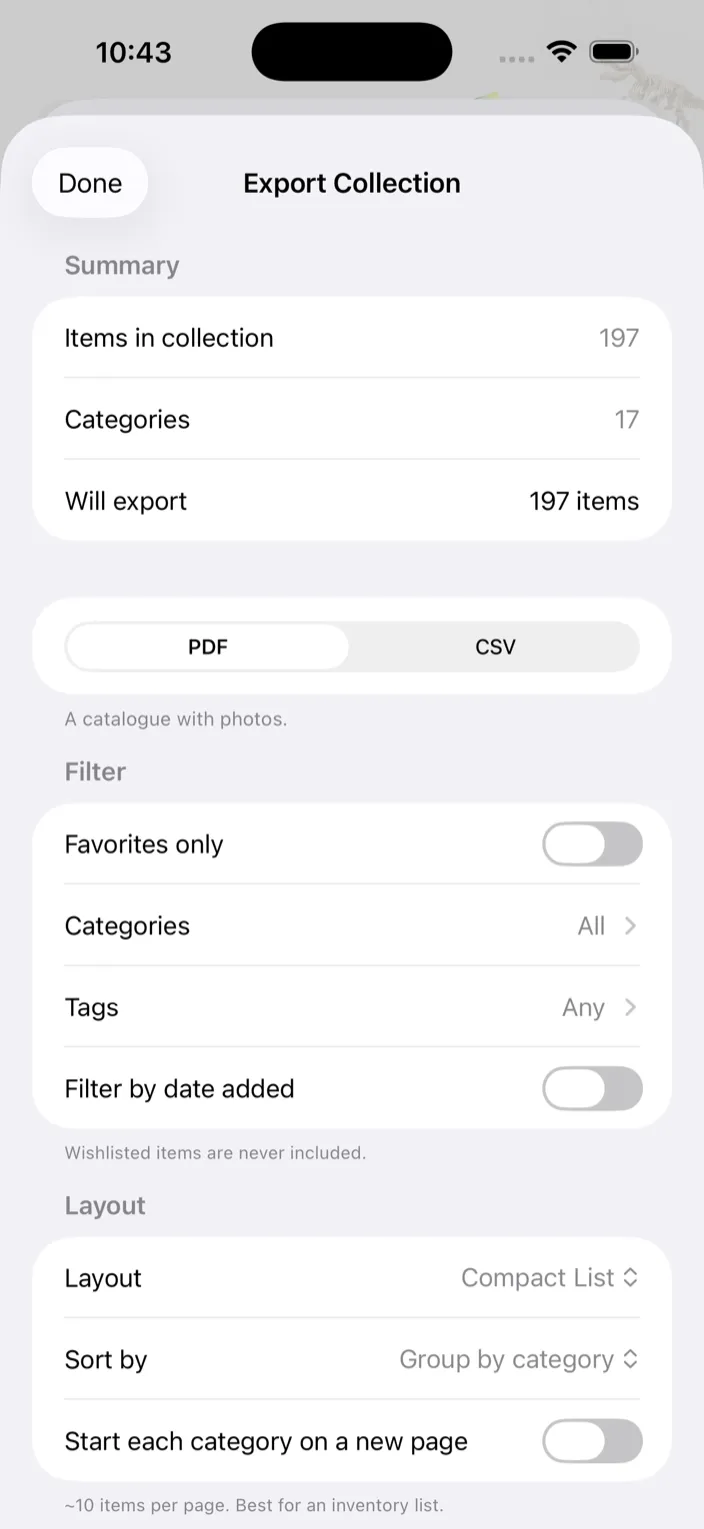
- For a PDF, choose a layout and sort. Compact List (about ten items a page), Grid (six a page), or Detail per Item (a full page each). Sort by Name, Date added, Market price, or Group by category; when grouping, you can Start each category on a new page.
- For a PDF, pick a photo quality. Standard quality uses the thumbnails already on your device and is fastest. High quality (originals) makes a sharper, larger file.
- Tap Generate PDF or Generate CSV.
- Share it via Mail, save to Files, or AirDrop. On Mac the button is Export PDF… or Export CSV… and saves wherever you choose; Show in Finder takes you to the last one.
Tips
- With more than one tag selected, an item has to carry all of them to be included.
- The CSV has one row per item: Name, Category, Quantity, Tags, Location, Stock (per location), Year, Brand, Series, Number, Barcode, Notes, Favorite, Added, Updated, Expires, Photos, and a Details column with everything else. Photos stay in the PDF.
- The CSV uses the same sort as the PDF, but the sort picker only appears while PDF is selected. Set it first, then switch to CSV.
- High quality on Mac may have to pull originals down from iCloud first, so it can take a moment.