Sync between iPhone, iPad, and Mac
Turn on iCloud sync once — your whole collection follows you across every Apple device.
Klepto syncs through your own iCloud account. There’s no Klepto account to create, no copy of your collection on a Klepto server, and no cloud plan to buy — sync is part of the free app.
Turn it on
- Make sure each device is signed in to the same Apple account.
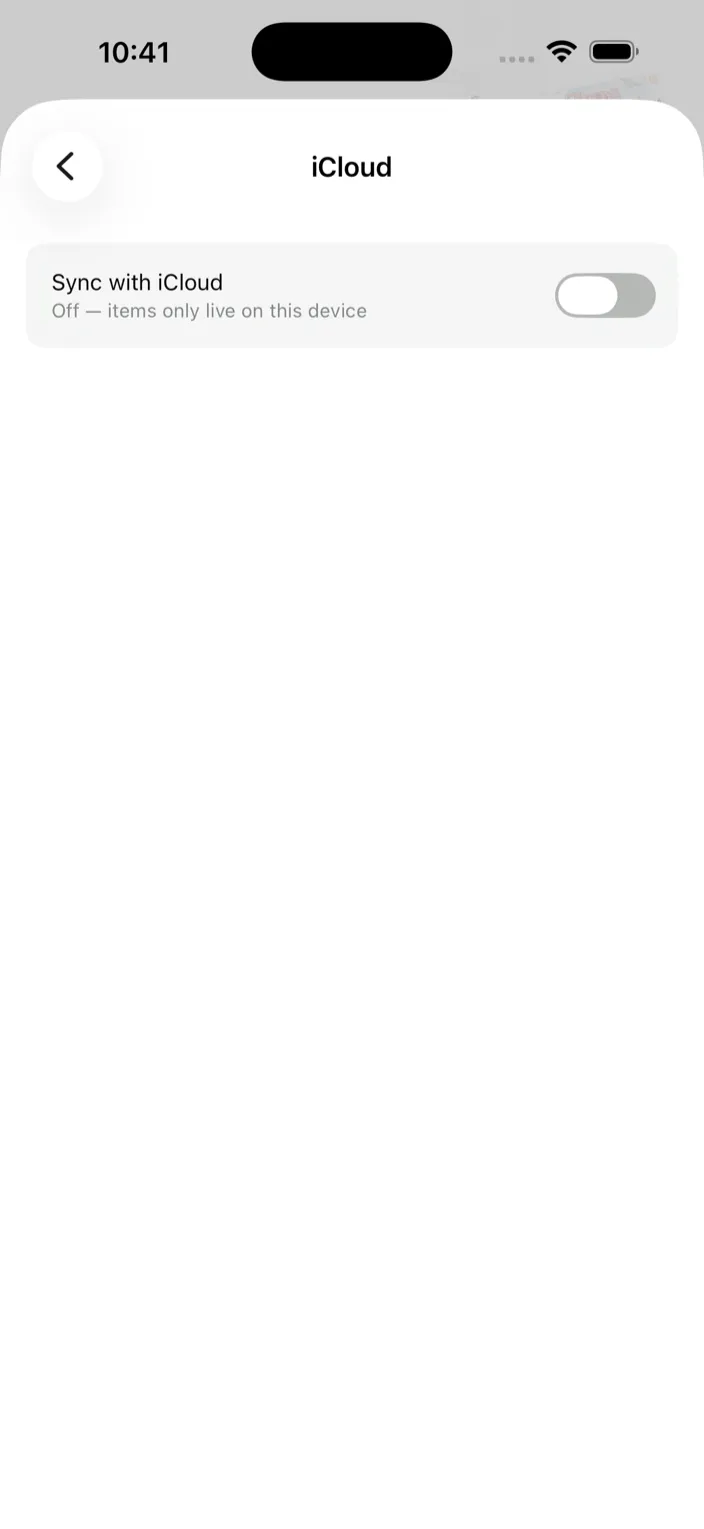
- In Klepto, open Settings → iCloud and turn on Sync with iCloud. On Mac it’s the iCloud pane in Settings.
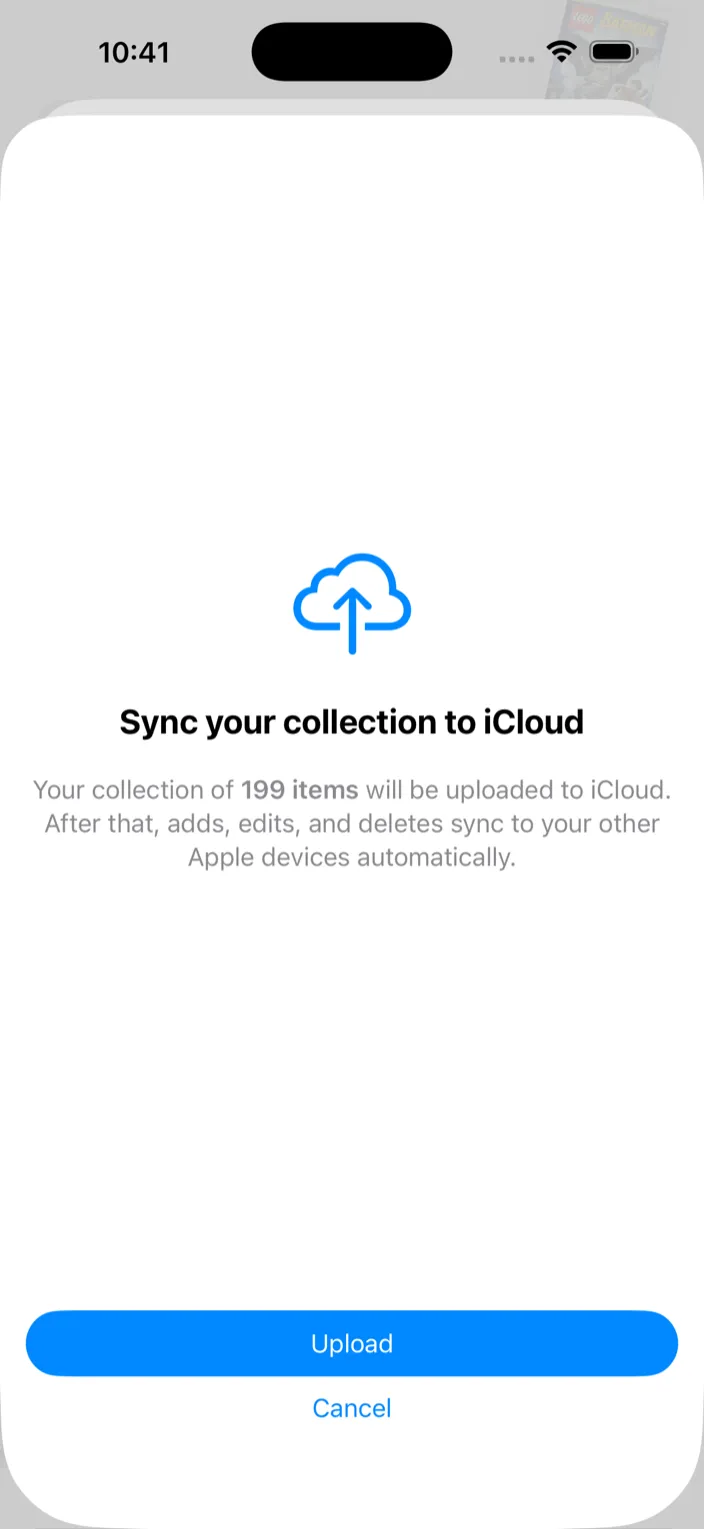
- The first time, Klepto shows how many items it’s about to upload. Tap Upload and wait for All set.
- On your other devices, turn the same switch on. Their items go up, then the rest of your collection comes down. After that every add, edit, and delete syncs on its own.
An empty home screen has a Turn on iCloud sync button too, so a fresh device can pull your collection before you add anything to it.
What syncs
- Every item, with its photos, notes, tags, quantity, and catalog details
- Collections and locations
- Favorites, wishlist entries, and expiry dates
- Which collections have expiry tracking on
- Collections other people have shared with you (see the sharing guide)
What doesn’t: Display settings — card style, favorites style, market value — are per device.
Tips
- Once sync is on, the iCloud pane shows when it last synced, or how many items are still waiting to upload. Refresh now forces a pull if a change from another device hasn’t shown up yet.
- Sync speed depends on iCloud, not Klepto. A big photo library can take a few minutes on the first upload.
- Sync is off by default on a fresh install. Turn it on before you add many items on a second device, so nothing has to be merged by hand.
- Turning sync off leaves everything on the device. Nothing is deleted.