Organize: categories, favorites, locations, tags
Slice your collection by what it is, what you love, where it lives, and how you label it.
Categories
Every item belongs to a category. Klepto ships with a curated list — LEGO, Funko, Board Games, Video Games, Trading Cards, and dozens more — and you can create your own.
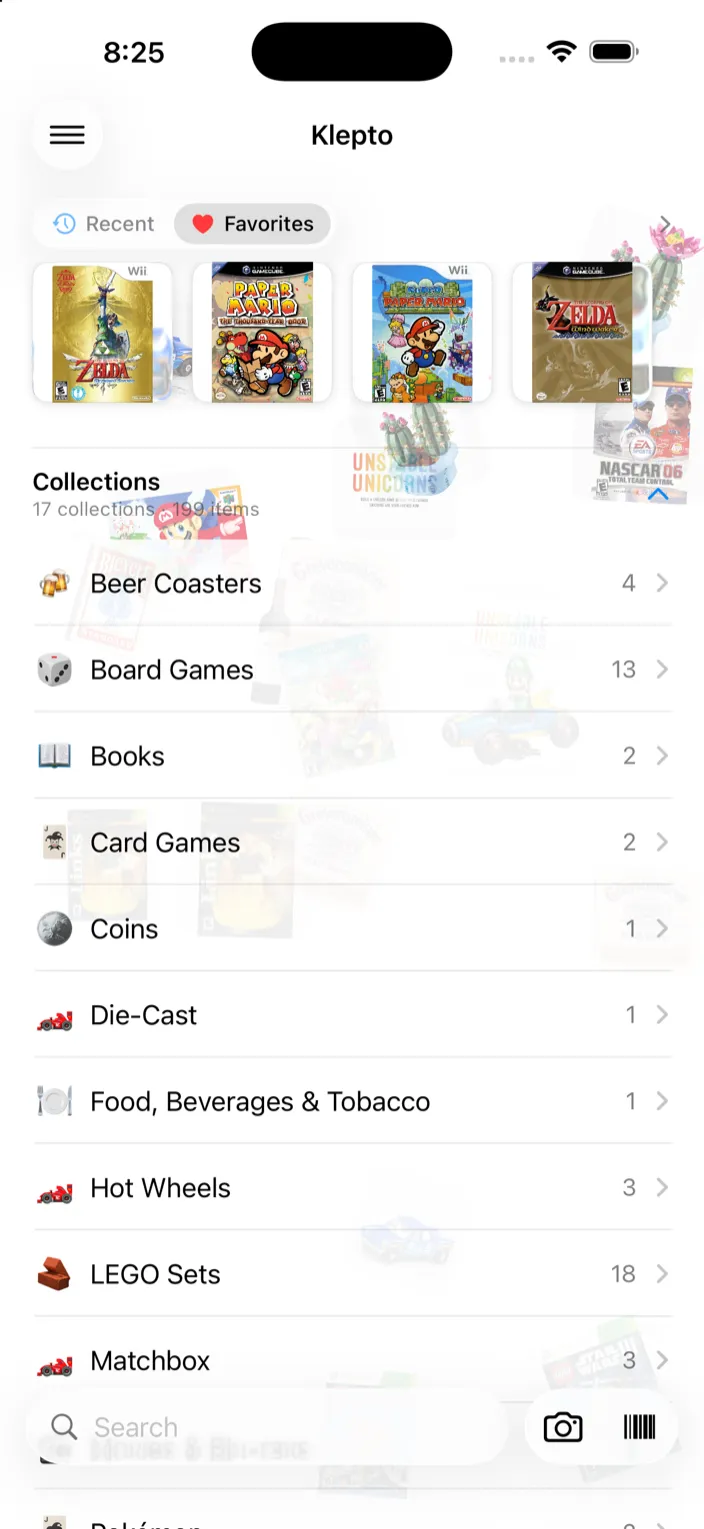
- The home screen shows one row per collection with a count, then a row for each location you keep things in. Anything past its expiry date gets an Expired row of its own.
- Change an item’s category from Edit — it’s the Category row under Collection.
- Long-press a collection on the home screen for Rename Collection…, Favorite Collection, and Share Collection….
- Ended up with two spellings of the same thing? Settings → Category cleanup merges them.
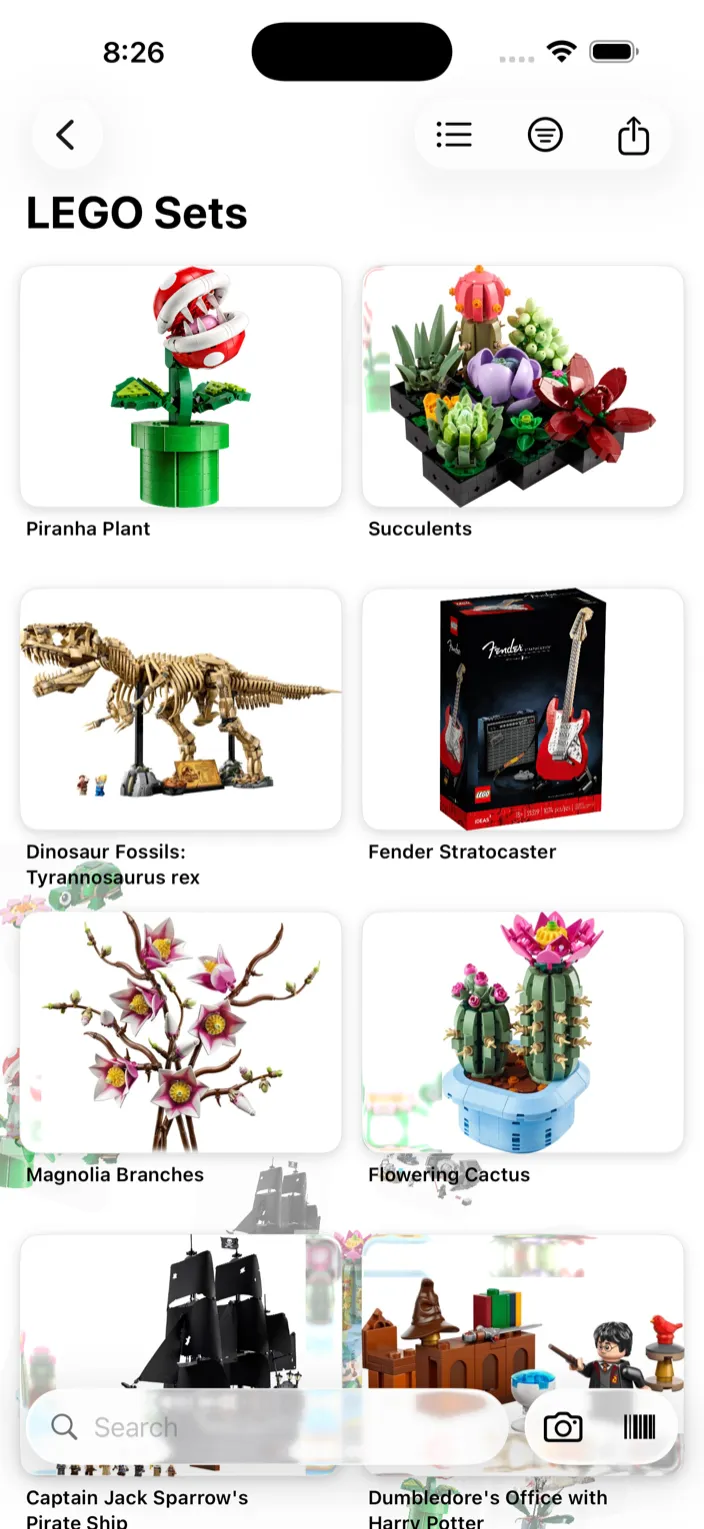
- Open a collection to see its items in a grid. The buttons at the top switch to a list, change the sort, and share the collection.
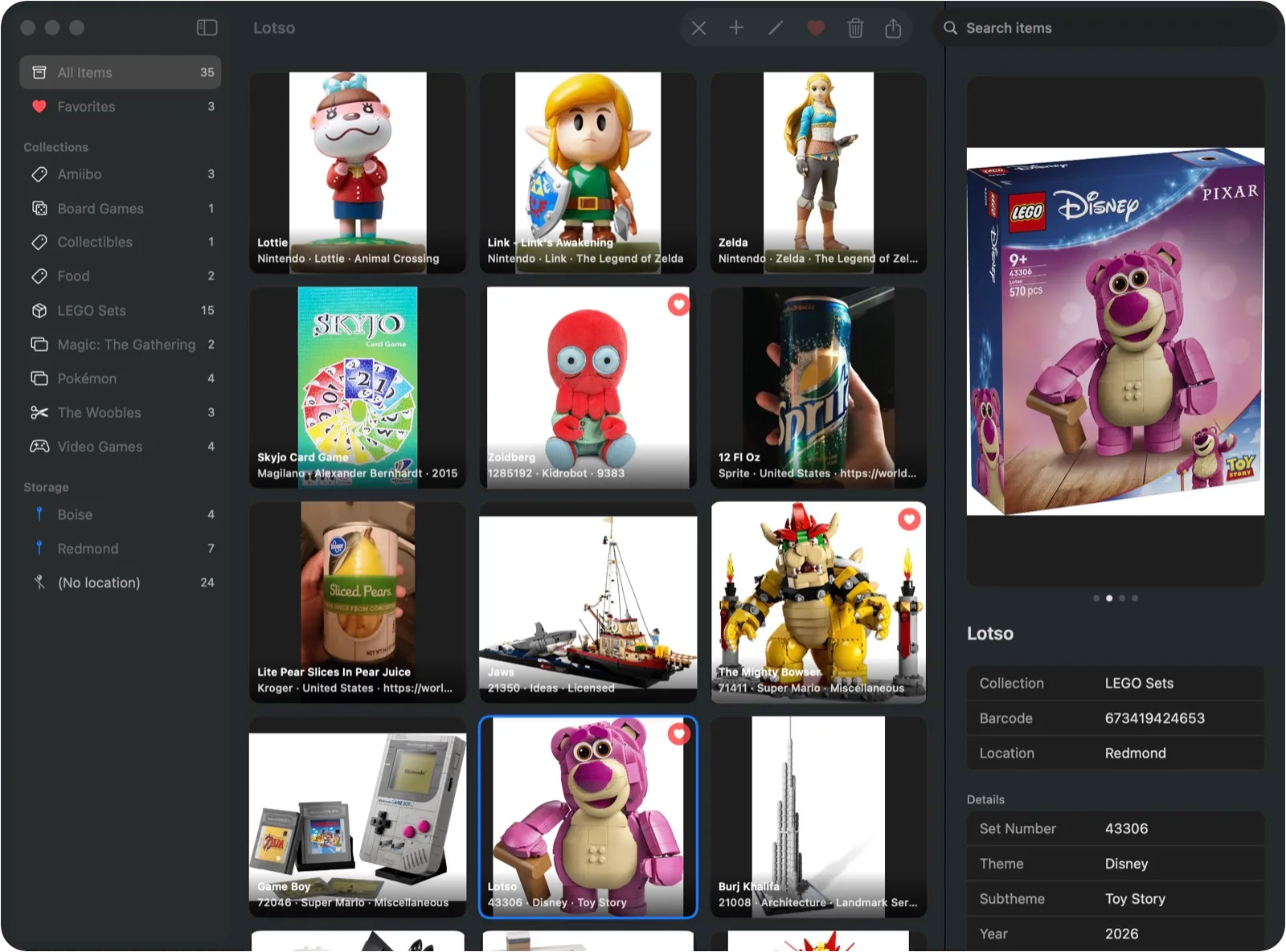
- On Mac, collections are in the sidebar, with locations under Storage.
Favorites
- Long-press an item card in a collection to favorite it. On Mac, right-click the card.
- Or tap the heart at the top of the item’s detail view.
- Favorites sit in their own strip at the top of the home screen. A favorited collection shows up there too, as a tile. If you’d rather have a row than a strip, that’s Settings → Display → Favorites style.
Locations
Locations track where something physically is — a display shelf, a bin in the garage, a storage unit.
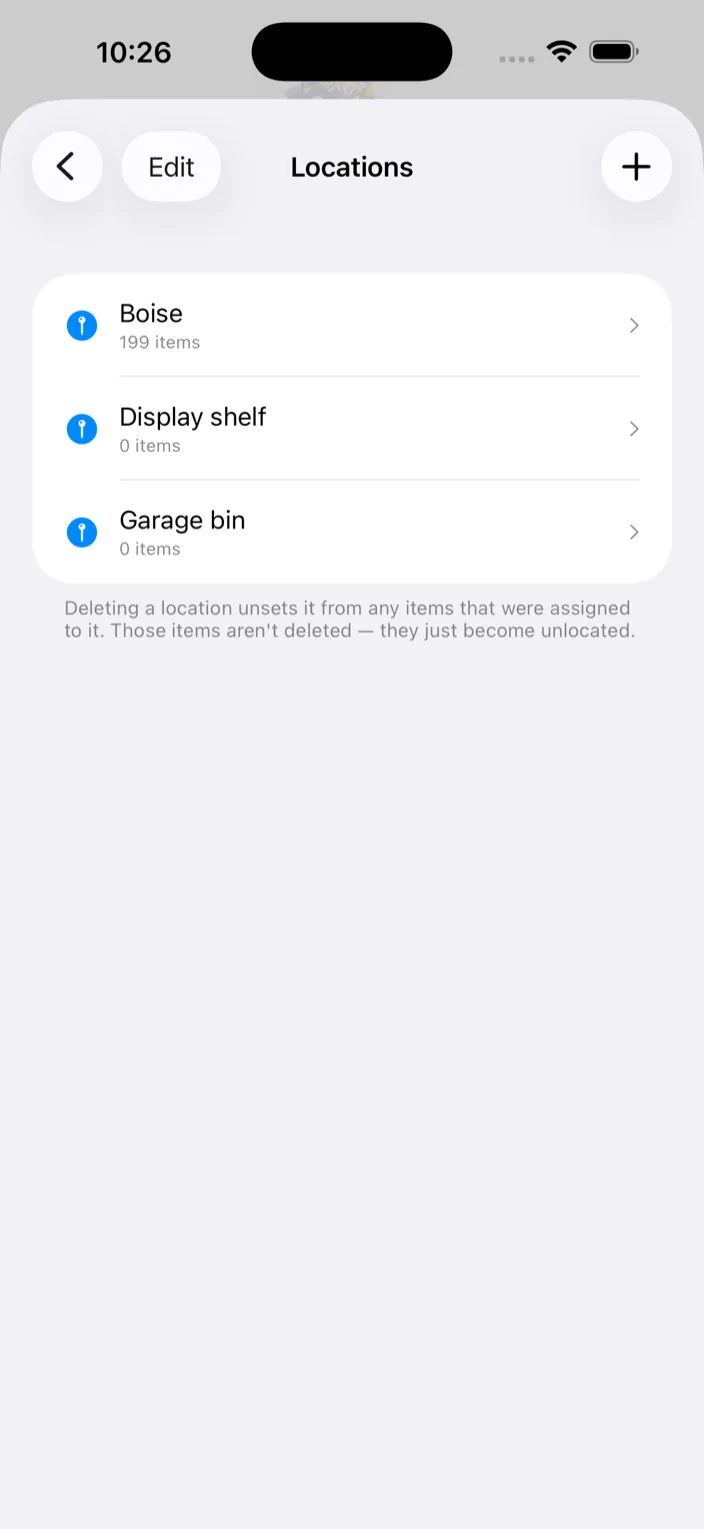
- Settings → Manage Locations, tap +, name it — “Box 5”, “Display shelf” — and Create.
- When adding an item, pick a Location and a quantity. The scan and photo cards have location chips right on them, so most items get filed as they arrive. The picker also has Create new location… for a shelf you haven’t made yet.
- When editing, the Locations section lets you split copies across shelves: tap Add another location and give each its own Qty.
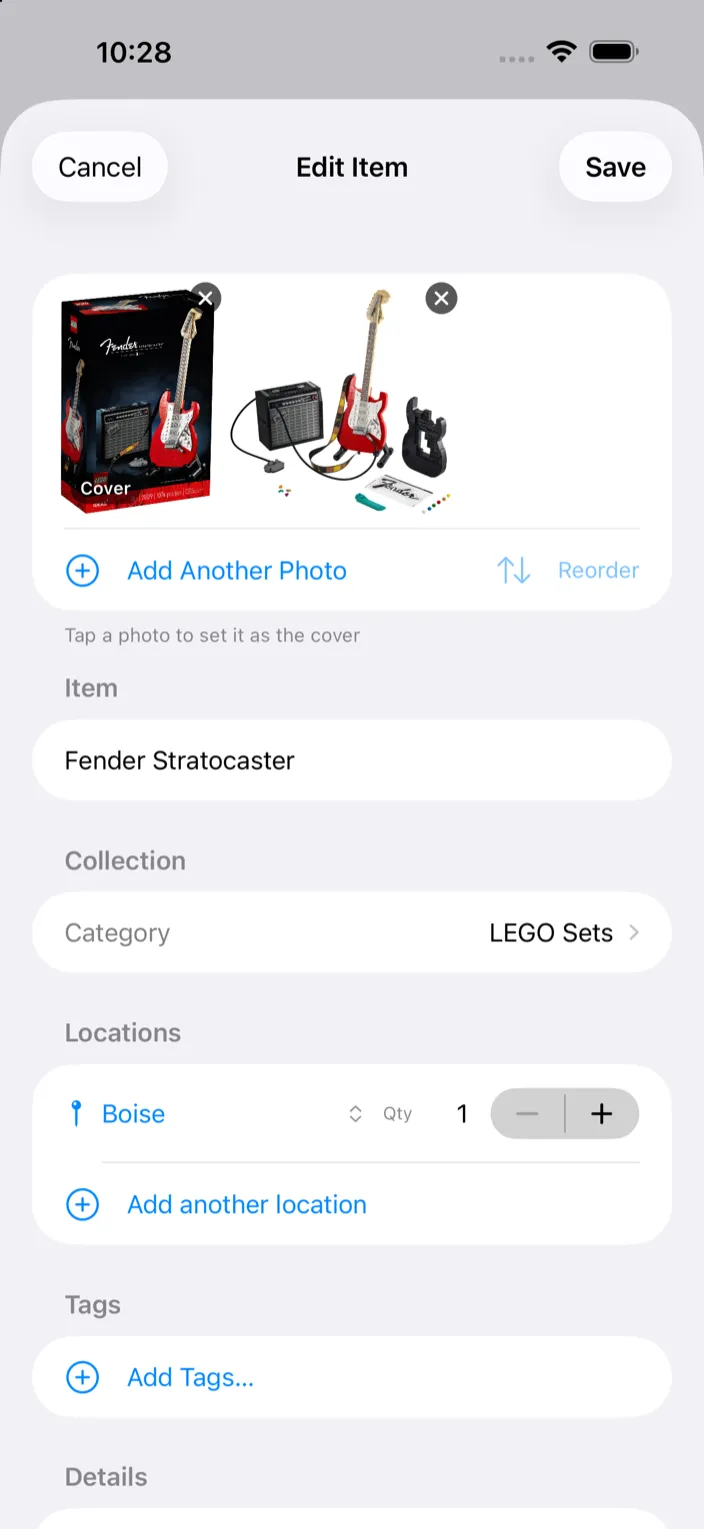
- Open a location from the home screen — or from Storage in the Mac sidebar — to see everything in it.
- Inside a collection, tap the sort button and choose By Location to see it grouped by shelf.
Tags
Tags are free-form labels. Each category keeps its own tag library, so the suggestions stay relevant to what you’re adding.
- Tap Add Tags… when adding or editing an item.
- Settings → Manage Tags shows every category’s library. Add a tag, drag to reorder, or swipe to delete. There’s no rename — delete and add instead.
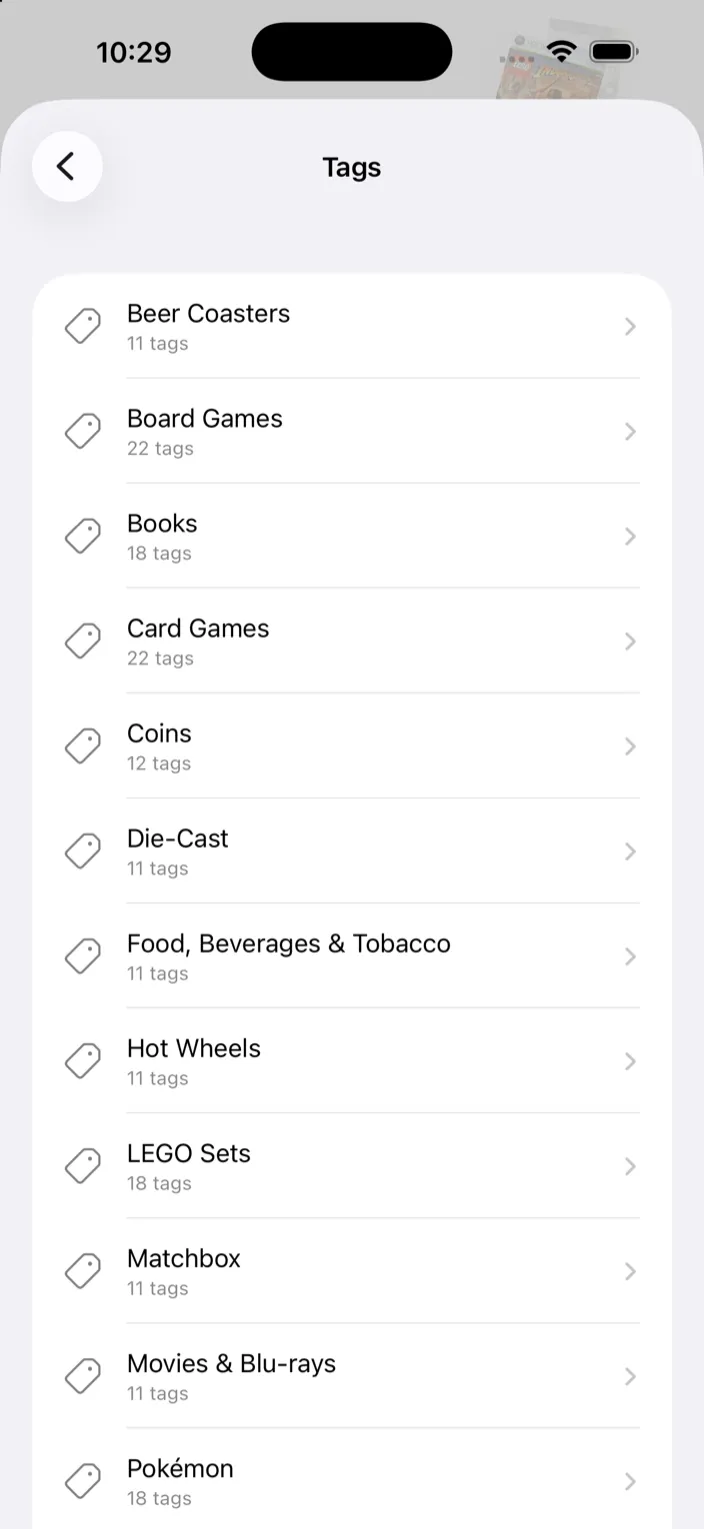
- Search matches tags, notes, locations, and details, so a tag is a quick way to pull up a set of items later.