Wishlist: want it now, own it later
Track things you plan to buy, then promote them to your real collection when they arrive.
The Wishlist is a special collection for things you don’t own yet. It stays out of your collection totals and your exports, but it lives alongside everything else, so a wishlisted item has the same catalog details, pictures, and prices as one on the shelf.
Add something to the Wishlist on iPhone or iPad
- Scan or photograph the item as normal.
- On the card, tap Wishlist — on the photo card it reads Add to Wishlist — instead of Add to Collection.
- The item lands in the Wishlist with a purple badge, and remembers which category it really belongs to.
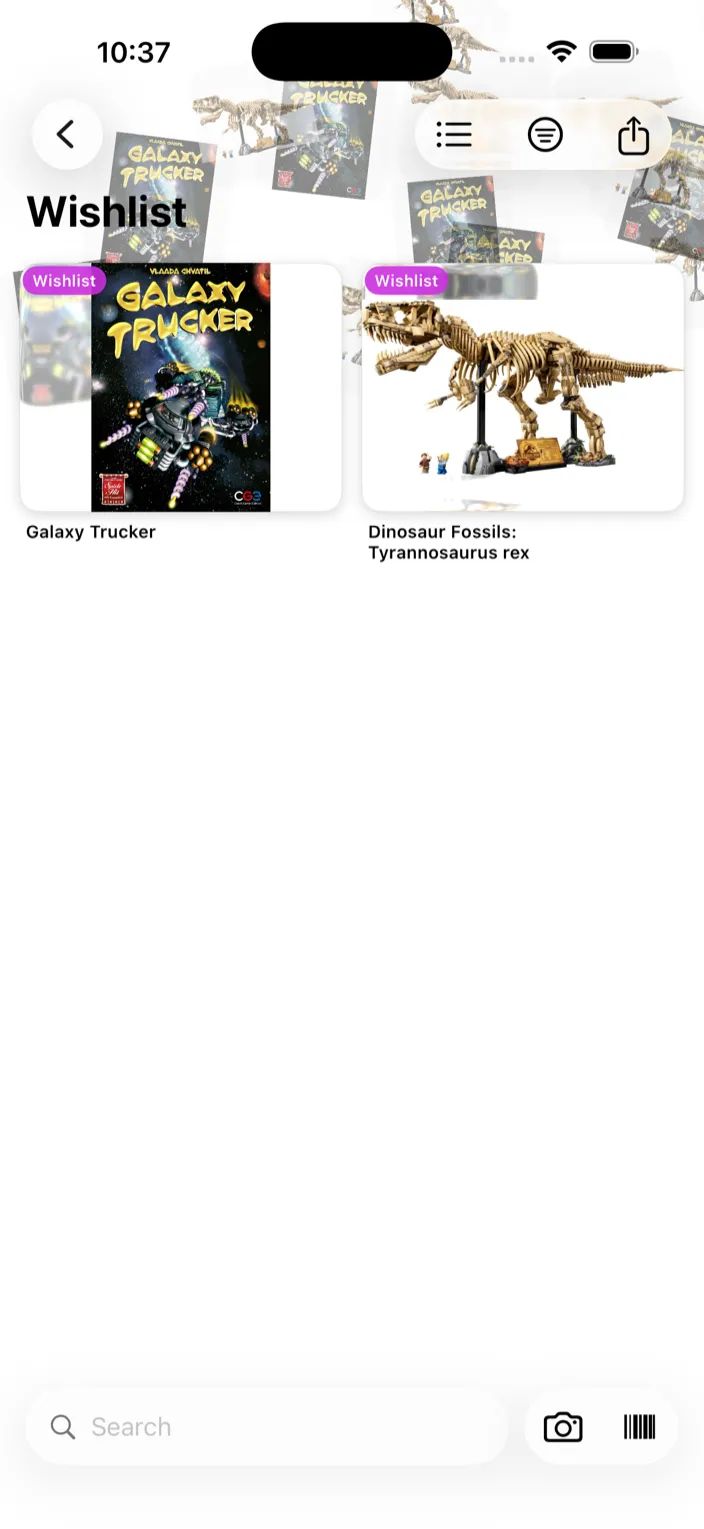
Wishlist is easy on Mac
The fastest way to build a wishlist is to drag any image into the Klepto Mac window while you’re browsing.
- Find something you want online — eBay, an artist’s store, a hobby forum.
- Drag the product photo straight from Safari (or Finder, or Messages, or anywhere else) into Klepto.
- Klepto identifies it and offers Add to Collection or Add to Wishlist.
- Pick Add to Wishlist.
No barcode, no scanning, no leaving the browser tab.
Promote a wishlist item to owned
- Open the item from the Wishlist.
- Tap Move to My Collection, just below the Collection and Location rows. The note under it names the category it will go to.
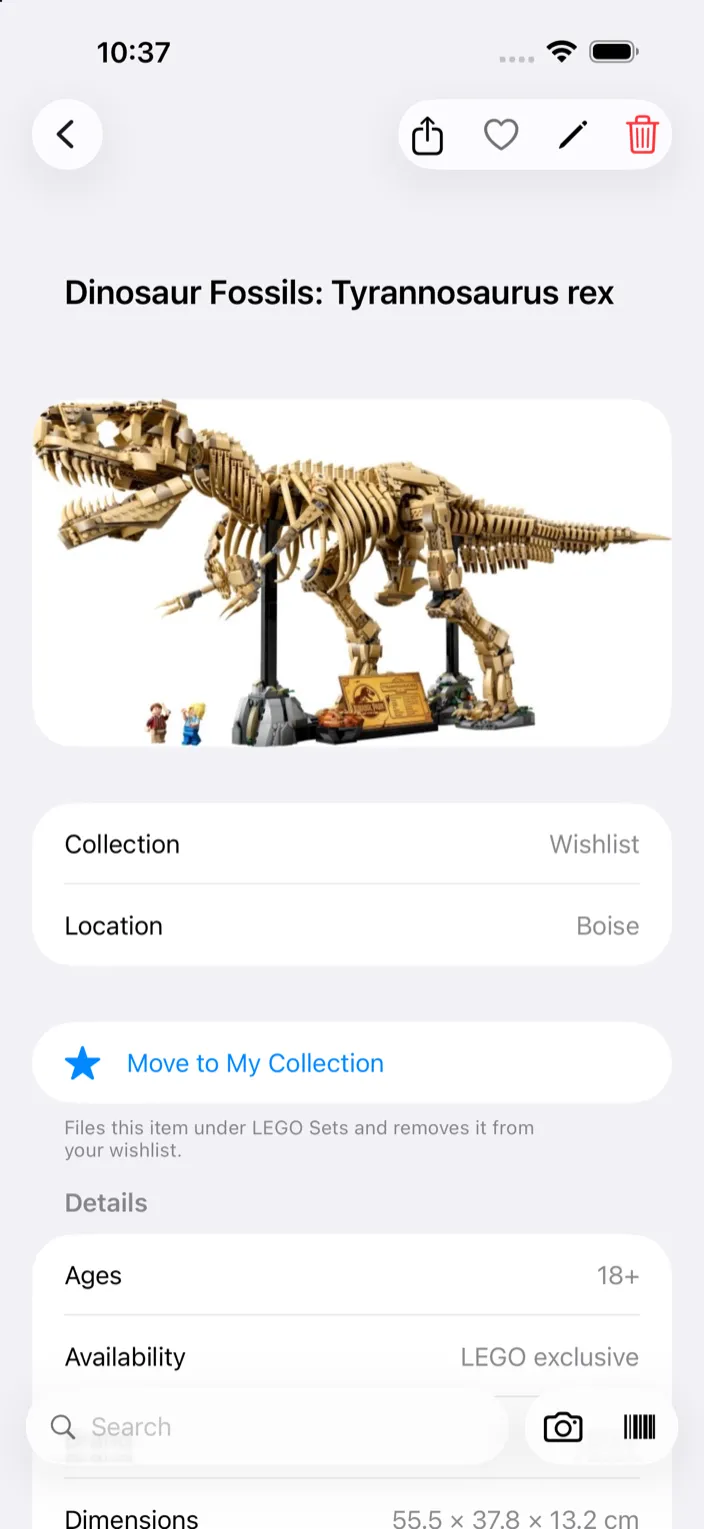
- It jumps to its real category — LEGO Sets, Board Games, whatever it was identified as — and comes off the Wishlist.
Scan something that’s already on your Wishlist and Klepto says so, with Move to Collection right on the card.
Tips
- Wishlist items don’t count toward “items in your collection” on the home screen, and never appear in a PDF or CSV export. They do count toward the free tier’s 50 items.
- The share button at the top of the Wishlist renders the whole list as one image — handy for sending a birthday list.
- Don’t use it? Settings → Features → Wishlist turns it off, and the Wishlist button leaves the cards.