Add an item from a photo
No barcode? Point the camera at it. Klepto works out what it is and fills in the details.
Plenty of things worth keeping have no barcode: a loose figure, a coin, a plant, a card out of its sleeve. Photograph it and Klepto identifies it, fills in what it can, and files it.
On iPhone and iPad
- Tap the camera button in the bar at the bottom of the screen.
- Take the picture. One item, filling the frame, front on. Tap the shutter.
- Crop or keep. Drag the corners to tighten the crop, then tap Use Crop — or Use Original to send the whole frame, or Retake.
- Wait a moment. The photo goes up as a polaroid while Klepto works out what it is.
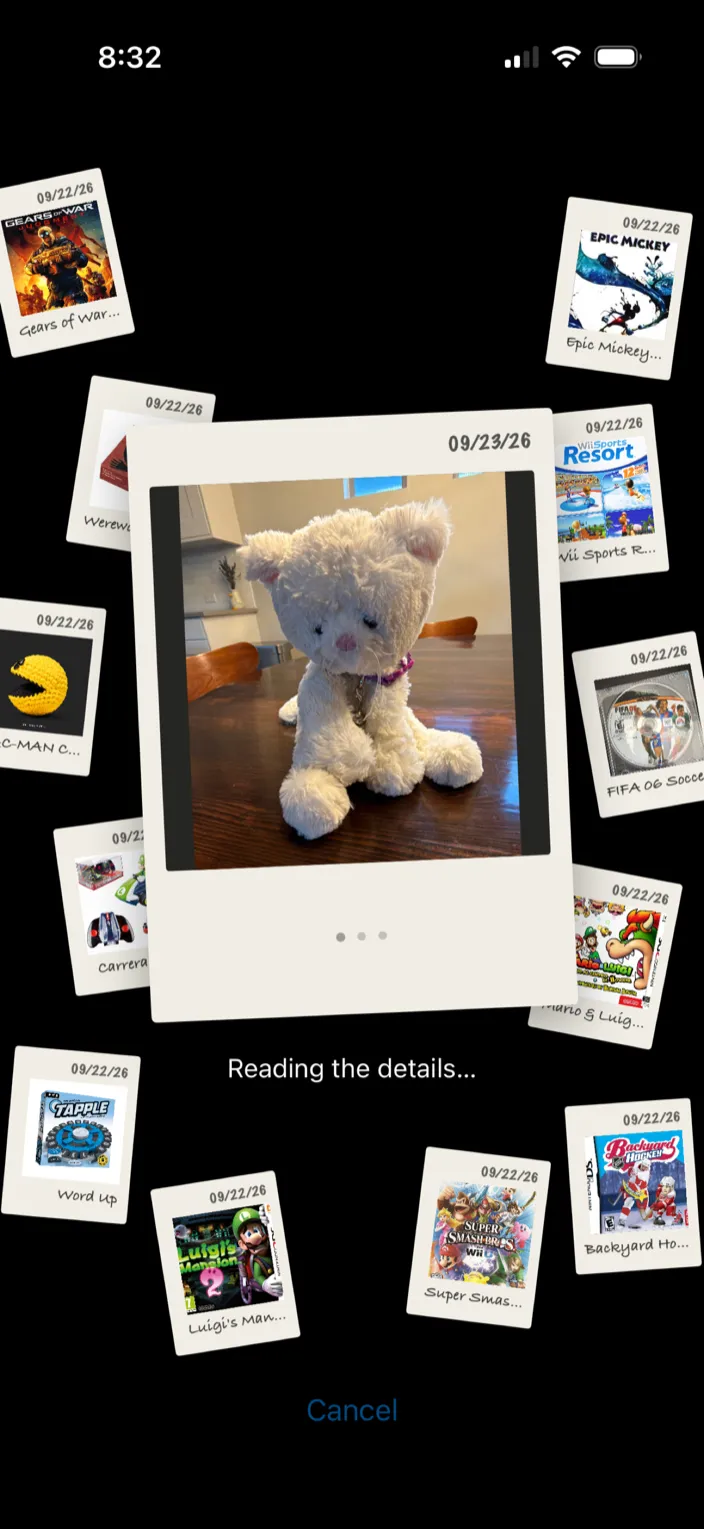
- Check the card. Name and category are filled in, with any catalog details Klepto found. Your own photo is on the card and stays with the item; tap it to leave it off and keep only the catalog picture. Pick a Location, then tap Add to Collection. Edit Details changes anything first; Retake tries another shot.
- If more than one thing matches, Klepto shows the candidates and asks which one you have.
On Mac
Drag an image into the Klepto window — from Finder, a web page, or the Photos app — and Klepto identifies it the same way. The sheet offers Add to Collection, Add to Wishlist, and Edit details.
Tips
- The free tier includes 10 photo identifications a month; Klepto Pro has no limit. Barcode scans and manual entry are always unlimited.
- Where a category has a real catalog — LEGO, Funko, trading cards, board games, coins, plants — the card comes back with the catalog’s details and picture. Anything else still gets a name and a category, and you add the rest.
- Squishmallows and Funkos come in variants. If the card offers a Pick variant strip, choose yours.
- Settings → AI Identification has an Auto-identify with AI switch. Turn it off and the camera button leaves the bar, a pencil for manual entry takes its place, and a photo you attach in the add form isn’t sent until you tap Identify with AI.