Scan a barcode to add an item
The fastest way to add anything with a UPC — books, LEGO sets, Funkos, board games, video games.
Klepto’s barcode scanner does the boring work: it reads the UPC, EAN, or ISBN, looks up the product, and fills in the name, category, details, and cover image.
On iPhone and iPad
- Tap the barcode button at the right end of the bar at the bottom of the screen.
- Point the camera at the barcode. Klepto locks on, reads it, and looks it up.
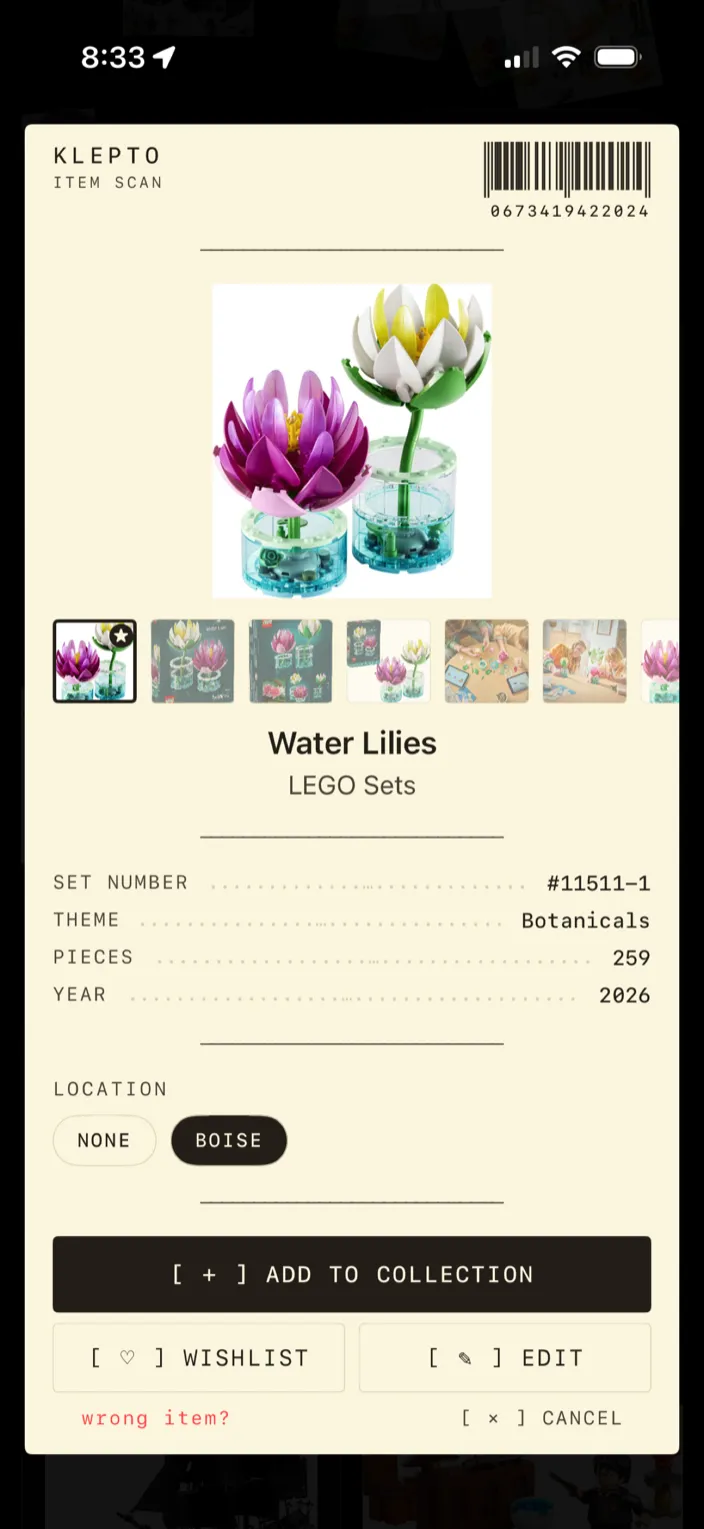
- Check the card. Name, category, details, and catalog photos are filled in. Under Location, tap the shelf or box this one lives in. Tap Edit to change anything before it’s saved, or Wishlist to file it as something you want instead of something you own.
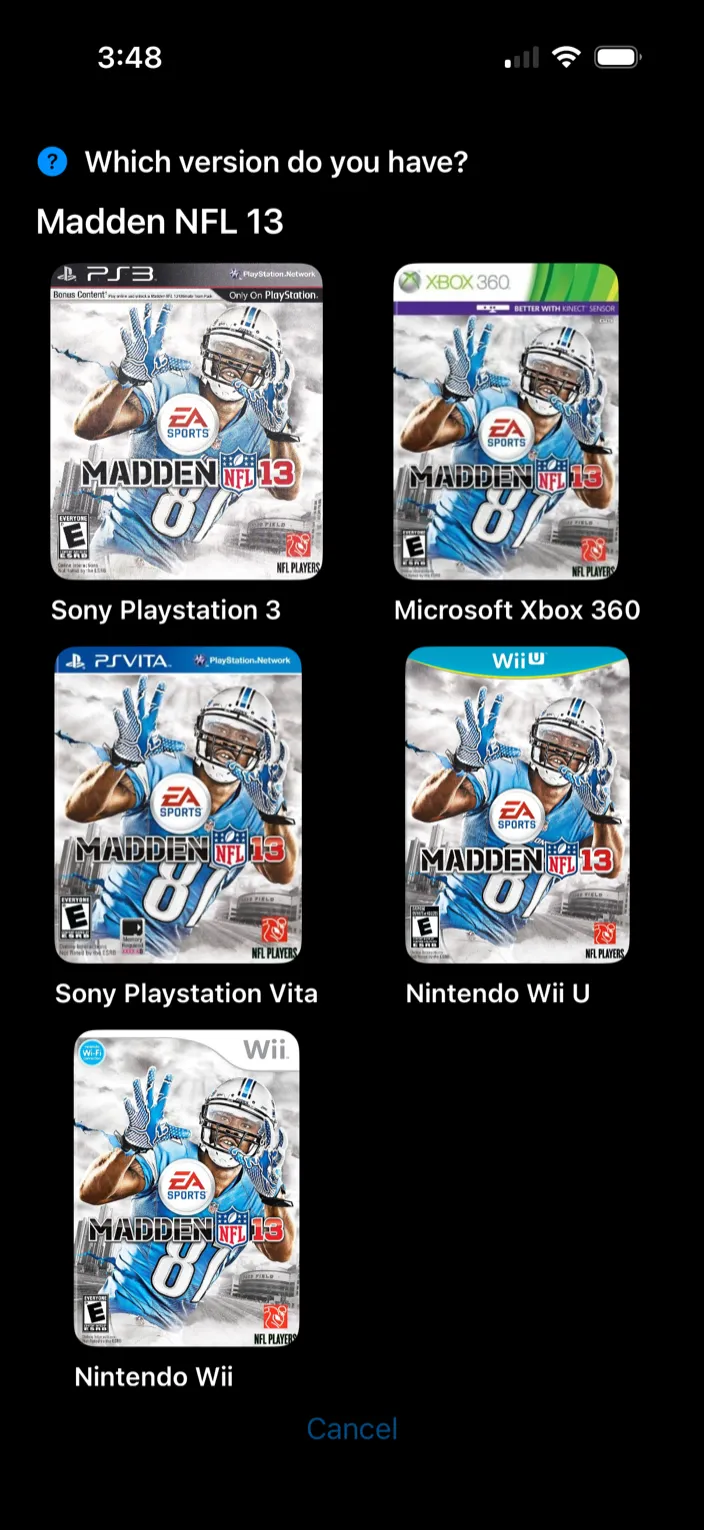
- If more than one product matches — the same game on five consoles, say — Klepto asks which version you have and shows each one’s cover. Tap the one on your shelf, or None of these at the bottom of the list.
- Tap Add to Collection. The item lands in its category, and in Recently Added on the home screen.
On Mac
The Mac app has no camera scanner. Add an item and type the barcode into the Barcode / Number field — Klepto looks it up the same way.
Tips
- Barcode scans are unlimited. The free tier holds up to 50 items, wishlist included; Klepto Pro removes the cap.
- If the barcode isn’t in any catalog, Klepto offers Take a Photo and identifies the item from the picture instead. ISBNs are the exception — a book Klepto can’t find, you add by hand.
- Wrong match? Tap wrong item? on the card. Klepto learns from it.
- Scan something you already own and Klepto says so, and offers Add Another (+1) rather than making a duplicate — or It’s a different variant if it isn’t quite the same thing.
- The Edit button reads Edit Details if you’ve turned the Wishlist off in Settings.
- Settings → AI Identification has an Auto-identify with AI switch. Turn it off and Klepto uses only barcodes and manual entry — no photos go anywhere.