Expiry dates and reminders
Put a date on wine, food, or anything else that goes off, and get a notification before it does.
Some collections have a clock on them. Turn on expiry dates for a collection and every item in it gets a date field and a reminder. Expiry dates are a Klepto Pro feature.
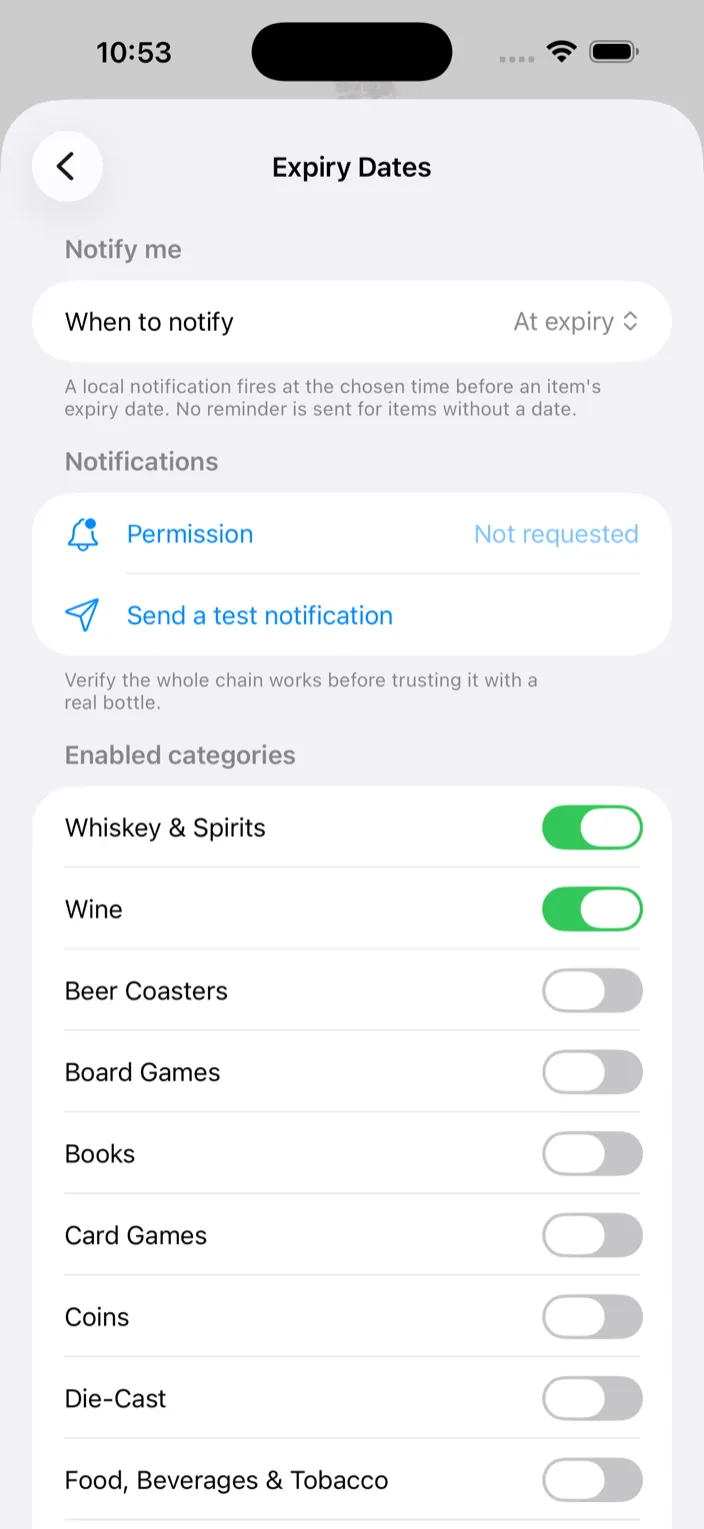
Turn it on
- Settings → Expiry Dates.
- Under Notify me, set When to notify to At expiry, 1 day before, 1 week before, or 1 month before.
- Tap Permission so Klepto can send notifications, then Send a test notification to make sure they arrive.
- Under Enabled categories, switch on the collections that need it. Only collections that already have items are listed, and the ones you turn on move to the top.
Set a date on an item
- Open an item in an enabled collection.
- Tap Add expiry date and pick the date. The row becomes Expiry Date, with Remove expiry date underneath if you change your mind.
When something expires
- Expired items are flagged in their collection and gathered under Expired on the home screen, next to Favorites and Recently Added. The Mac sidebar has the same entry.
- The reminder fires as a normal notification. Tap it to jump straight to the item.
Tips
- Turning a collection off cancels its scheduled reminders. The dates stay on the items.
- Inside a collection, sort by Expiry · soonest first to see what needs drinking.
- Which collections have expiry on syncs through iCloud, so your other devices show the same date fields.
- The CSV export has an Expires column.